لم تُترجم هذه الصفحة بعد، لذا فأنت تقرأ النسخة الإنجليزية.
Staff and shifts
Your staff list, rotas, clocking in, attendance, leave, payroll and HR, on the Staff page and on WhatsApp.
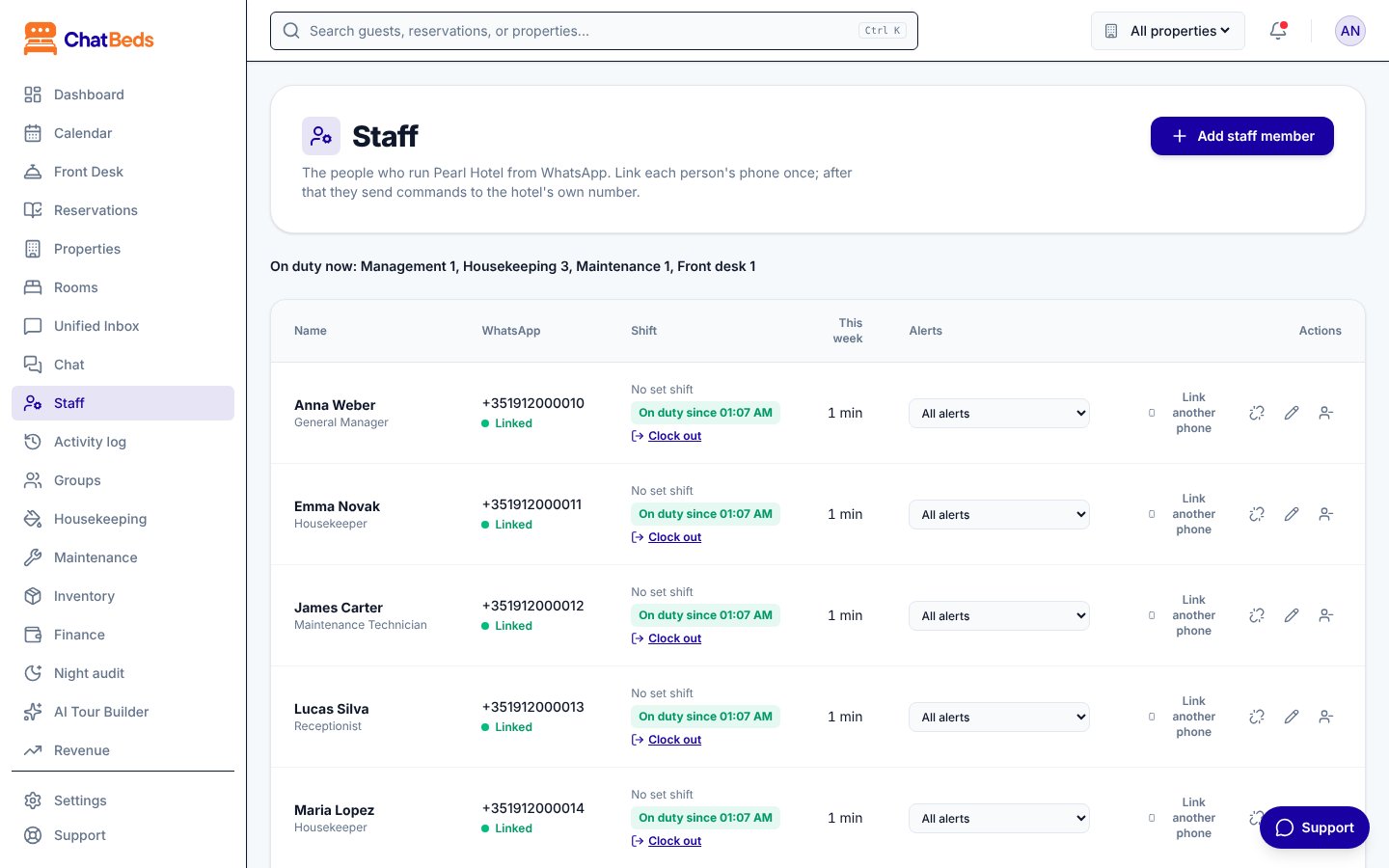
The Staff page lists the people who run your hotel from WhatsApp. Its tabs cover the whole job of managing them: Team (the list, who is on duty, the time sheet), Rota, Attendance, Leave, Payroll, HR and HR rules. Rotas, attendance, leave, payroll and HR are in the Pro plan.
Staff list or dashboard login?
The Staff page is for WhatsApp. People who sign in to the dashboard are under Settings → Team and permissions. A person can be on both. See Roles and permissions.
Add someone to the staff list
- Open Staff in the sidebar and click Add staff member.
- Fill in the details:
- Name
- Role: decides which chat commands they can use and which alerts they get.
- Shift: Morning, Evening, Night, or No set shift.
- Department: leave it on From the role unless you need something else.
- Floor (optional): housekeeping alerts and room lists use it.
- Alerts: All alerts, Important and critical only, Critical only or No alerts.
- WhatsApp number (optional), with the country code.
- Click Add staff member, then Link WhatsApp on their row so they can connect their phone.
Linking a phone is explained step by step in Add your team.
Your plan sets how many people can be on WhatsApp: 1 on Free, 10 on Essentials, and no limit on Pro and Group. See Billing.
Shifts
Set your hotel's shift times in the Shift times box on the Staff page, then click Save shift times. If you don't set them, ChatBeds uses:
| Shift | Times (hotel's local time) |
|---|---|
| Morning | 07:00 to 15:00 |
| Evening | 15:00 to 23:00 |
| Night | 23:00 to 07:00 |
A shift does not put anyone on duty
Being down for a shift only tells ChatBeds when someone is expected. A person is on duty only after they clock in. Alerts go to people who are on duty.
Clock in and out
Staff send clock in when they start and clock out when they leave.
They can also send my hours to see their hours on duty this week.
Late arrivals
Someone who clocks in more than 10 minutes after their shift began is marked late, with how late. It shows on the Staff page, in who is on duty, and in their own reply:
Forgot to clock out
16 hours after clocking in, a person stops counting as on duty, so alerts stop going to them. The Staff page shows Never clocked out.
Their shift is closed at the 16-hour mark when they next clock in or out, or when a manager clicks Close shift on their row. ChatBeds tells the person, and asks them to tell their manager if that is wrong.
Who is on duty
- On the dashboard, the On duty now line at the top of the Staff page lists everyone clocked in.
- On WhatsApp, owners, GMs and supervisors can send
who is on duty.
The time sheet
The Time sheet on the Staff page adds up each person's hours, day by day, one week at a time.
- Use Previous week and Next week to move between weeks.
- It shows each person's total, and how many shifts had no clock-out.
- A shift that runs past midnight is split between the two days.
- The This week column on the staff list shows hours since Monday.
Wrong times are corrected on the Attendance tab (below).
HR rules: start from your country
Open the HR rules tab first. ChatBeds fills it from your country: normal hours a day and a week, the most a week with overtime, overtime and public-holiday pay, the least rest between shifts, days off, annual, sick and casual leave, and the limits for young workers. Weekends and public holidays come from your country too. Change anything that differs at your hotel, then confirm. These are starting values, not legal advice.
The same tab holds the staffing numbers the rota uses (rooms a housekeeper cleans in a shift, arrivals and departures per desk person), your contract template and the notice period.
The staff file
Click the file button on a person's row. Work details (job title, employee number, manager, contract hours, start date, probation) are seen by anyone who sees staff. Private details (date of birth, ID, address, emergency contact, bank or mobile wallet, pay) need the See private staff details permission and are stored encrypted. Add documents (contract, ID, visa, work permit, certificates) with an expiry date: the person and their managers hear 30 days before it.
When someone leaves, set their last day and reason under Leaving. Their future shifts become open shifts.
Rotas
On the Rota tab:
- Under The shifts you run, add each shift with how many people it needs (for example Front desk morning, 2).
- Add shifts to the week by hand, click Copy last week, or click Draft with Ana. Ana fills each shift that is short with a suitable person who has the fewest hours, nights and weekends lately and breaks no rule.
- Check the warnings: too little rest, overlapping shifts, too many hours, leave, or someone who said they can't work. They never block you.
- Click Publish. Each person gets their shifts on WhatsApp. Open shifts are offered to the team with a code, and the first to reply
TAKE R1234gets it.
The Needed row shows, for each day, the housekeepers and desk people your bookings need against the people on the rota.
Staff send my shifts to see their week and swap friday to offer a shift to colleagues.
Attendance
Clocking in is matched to the person's shift on the rota, so the Attendance tab shows each shift as on time, late, left early, no-show or on leave, with planned and clocked times. Staff send break and back for their breaks. Hours are split into normal, overtime and public-holiday hours using your HR rules.
- A manager corrects a time, or adds a forgotten shift, with a reason. The original times stay on record and the person is told.
- Approve hours approves the week's shifts for payroll.
- If nobody clocks in 15 minutes after a shift began, their managers get one alert.
- Staff can clock in with a PIN on the reception tablet. A manager sets the PIN on their staff file.
Attendance machines
Fingerprint, face and card machines (ZKTeco, Hikvision, Anviz, Suprema, eSSL, Realand and others) work with ChatBeds. Each punch becomes a clock-in or clock-out at the minute it happened, on the time sheet like any other, and the time sheet says how it was made, for example Fingerprint · Staff entrance.
- Open Staff → Machines and choose Add a machine.
- Pick the brand (the brands most used in Pakistan come first) and how it connects:
- Upload its file: works with every machine. On the machine, choose USB → Download attendance, then Upload punches in ChatBeds. You see what the file holds before anything is saved, and uploading the same file twice adds nothing.
- Attendance API: your machine's software, or a local IT company, sends punches to ChatBeds with the machine's key (shown once).
- Sends punches itself (ZKTeco and eSSL machines with the cloud server setting): nothing to install. Type the machine's serial number in ChatBeds, then on the machine open Menu → Comm. → Cloud Server Setting and type the server address
attendance.chatbeds.app, port 443 with HTTPS on (older machines without HTTPS: port 80, HTTPS off), and domain name on. ChatBeds waits for the machine and says when it is connected; from then on every punch arrives as it happens, and punches made while the internet was down arrive when it is back. - Through the Attendance Bridge (older ZKTeco and eSSL machines that connect on port 4370): a small ChatBeds program on a computer at the hotel that stays on (the desk PC, a mini PC or a Raspberry Pi), on the same network as the machine. Type the machine's IP address (Menu → Comm. → Ethernet; give it a fixed address on your router) and its comm key if one is set. Then on the Machines page, Set up the Bridge: download it, and on that computer run
python bridge.py --pairwith the code shown, thenpython bridge.py(the README in the download says how to start it with the computer). The page says when the Bridge is paired; from then on it reads the machine every minute. - Hikvision and the brands' own software (BioTime, CrossChex Cloud, BioStar 2, HikCentral) are coming.
- Give each person their attendance ID (the number they have on the machine) in their staff file. It is their employee number unless you set another.
How punches are read. Automatic: the first punch starts the shift and the next one ends it. The machine's keys: staff press Check-in, Check-out or Break on the machine. A second press within 2 minutes is ignored.
Nothing is lost. The Machines tab lists every punch and what ChatBeds did with it. A punch by an ID nobody has, or one that can't be placed (an out with no in, a time in the future), is kept and shown to you instead of guessed. Older punches in a file go in their place, between the shifts already recorded.
Fingerprints and faces stay on the machine. ChatBeds keeps who punched, when, and how; never a fingerprint or a face. A machine that sends its fingerprint data anyway has it thrown away; the machine's card only says who is enrolled with what.
A machine that sends punches itself is safe to connect. ChatBeds answers only machines you added, and a machine is paired by its first contact within 24 hours (Pair again opens another 24 hours). If its punches suddenly come from a different internet address, they are held until you press Trust this network; if your hotel's address changes often, tick Our internet address changes often. Ask for punches again has the machine send its last month again: punches ChatBeds already has are kept once.
Your staff list goes to the machine by itself (machines that send punches themselves). Once the machine is connected, everyone with an attendance ID is added to it with their name, so they only need to enrol their finger, face or card at the machine. A new joiner, a new ID or a new name follows at once; someone who leaves is removed on their last day, which deletes their fingerprint and face from the machine. People added at the machine that ChatBeds doesn't know, and the machine's admins, are never removed: the machine's card lists them so you can tidy up. Sync staff now compares the machine with your list at once (ChatBeds also does it every day).
Biometric consent. In each staff file, Attendance machines shows whether they are on each machine and enrolled with what, and their consent: press Agreed on paper, Agreed in person or Said no. Staff can answer themselves on WhatsApp: biometrics shows them the notice, biometrics yes or biometrics no answers. Someone who says no uses a card or PIN at the machine instead. The machine's card warns you about anyone enrolled with a fingerprint or face and no consent recorded.
The Attendance Bridge only calls out to ChatBeds: nothing at the hotel is opened to the internet, and it never reads fingerprints or faces off the machine. It keeps your staff list on the machine (as above), sets the machine's clock when it drifts more than two minutes, and the machine's card says when it can't reach the machine and why (switched off, a new IP address: Change address). If the internet is down, punches wait on the machine. One Bridge per hotel: Pair another computer moves it, and the old computer stops. Older machines keep only 8 letters of a name; that's expected.
Alerts and confirmations. On Staff → Machines, two switches:
- WhatsApp alerts to managers (on): the owner and GM hear on WhatsApp (and on the bell) when a machine or the Bridge hasn't been heard from for 30 minutes during the day (06:00 to 23:00) and again when it's back, when a machine's clock is out and ChatBeds couldn't set it, when punches are waiting for you, once a day about punches by IDs nobody has, and once a week when a machine's file hasn't been uploaded for 7 days. Machines are checked every hour.
- Confirm each punch to staff (off): each person linked on WhatsApp gets "✅ Clocked in at 07:58 at Staff entrance" as they punch, and their hours when they clock out. Only for punches that arrive as they happen, never for a file uploaded later.
Each machine's card shows its punches today. For machines on the Bridge, Set the clock sets it to the hotel's time within a minute (ChatBeds also does it by itself when a clock drifts more than 2 minutes).
Ways to clock in
On Staff → Machines → Ways to clock in, switch off any way your hotel doesn't use: WhatsApp, the reception tablet, or the machines, for everyone or for one team (for example, housekeeping on the machine only). Someone who works off site can keep a way of their own. A manager on the Staff page can always clock someone in, and every team keeps at least one way switched on.
When WhatsApp is off for someone, their in gets an answer telling them where to clock in instead, for example "Please clock in with the attendance machine (Staff entrance)."
Leave
Leave types (annual, sick, casual, unpaid) come from your country, and you can change their days or add your own. Annual leave builds up month by month.
Staff also send sick today and my leave. Managers get the request on WhatsApp with a code and approve on the Leave tab or by replying APPROVE L1234 or REJECT L1234. Approved leave turns the person's shifts on those days into open shifts for the team.
Payroll
On the Payroll tab:
- Check the pay rules: ChatBeds starts from your country's income tax and contributions (or a general set you fill in). Have your accountant check them, then click Mark as checked.
- Click Prepare this period's pay. Each person's pay is worked out from their approved hours and leave, line by line: basic pay, overtime, allowances, tips, tax, contributions and advance repayments.
- A second person approves it. Nobody approves pay they prepared.
- Download the bank file, the wallet list or the cash list, pay everyone, then click Mark paid. Everyone gets their payslip on WhatsApp in their own language.
Staff ask for an advance with advance 5000 and see their payslip with my payslip. When someone leaves, Prepare the final settlement on their file pays their last days, unused leave and any gratuity.
ChatBeds does not file taxes
ChatBeds works out the pay, makes payslips and payment files. It does not file tax or social security returns. Your accountant does that.
HR
The HR tab holds hiring, reviews, papers to sign, training and warnings.
- Hiring: open a job and share its link. People apply on a public page. Hire turns an application into a staff file and starts the onboarding checklist.
- Signing: contracts, policies, reviews and warnings are sent to the person's own page. They sign by typing their name and a code sent to their WhatsApp.
- Reviews: probation and yearly reviews appear two weeks before they are due, with guest reviews that named the person.
- Training: assign ChatBeds University tracks with a due date.
The staff page
Staff send my page to get a link to their own page: their shifts, hours, leave balance, payslips, advances and papers to sign.
Remove someone
When a person leaves, click Remove on their row.
- If they are on duty, their shift ends.
- Their WhatsApp number is unlinked and freed, so it can be linked to someone else.
- Their name stays on everything they did, such as "cleaned by" or "fixed by". Your records stay complete.
To keep the person but stop their phone working, click Unlink WhatsApp instead. That also ends their shift if they are on duty.
Who can manage staff
Anyone whose role includes the Staff page can see the list and the time sheet. Adding, changing and removing staff, clocking people in or out, and setting shift times need the Manage staff permission, which also covers publishing rotas, approving hours and leave, and corrections. See private staff details opens private details and documents; HR rules covers the rules, leave types, hiring, reviews and warnings; Prepare payroll and Approve payroll cover pay. The Owner and Admin roles have them all, and the HR and payroll role has all of these and nothing else.
Learn how alerts follow shifts in Alerts and shifts.
هل ما زلت تحتاج إلى مساعدة؟
AI team
Put AI agents to work at your hotel as members of the team, with the rules you set, approvals when they matter, and undo.
The ChatBeds Staff app
The phone app for your staff. Set up a phone with a QR, alerts in the app instead of WhatsApp, clock in, rooms, inspections, maintenance tickets, guest orders, complaints and lost and found, even offline.