
Channels (Airbnb, Booking.com and more)
Link each room's calendar with Airbnb, Booking.com, Vrbo, Expedia or Google Calendar so a room sold in one place shows as taken everywhere.
ChatBeds keeps your rooms in step with the booking sites by calendar sync (iCal). You link each room to its listing on a channel. A room sold anywhere then shows as taken on the other channels.
Supported channels: Airbnb, Booking.com, Vrbo, Expedia (vacation rentals), Google Calendar, and any other calendar that gives an iCal (.ics) link.
Calendar sync, not a full channel manager
A calendar only says which nights are taken. It carries no prices, no stay rules and no guest details. Each channel keeps its own prices and rules, which you set on the channel itself. Bookings from a channel arrive in ChatBeds with a placeholder guest name and no price, and your front desk fills these in.
How it works, both ways
For each room and channel, there are two links:
| Direction | What it does |
|---|---|
| Out: our address to the channel | Each room has its own calendar address for that channel. You paste it into the channel's "import calendar". The channel then sees the room as taken whenever it is booked anywhere else, blocked, closed here, or closed for that channel. Guests' names are never sent, only "Not available". |
| In: the channel's link to us | You paste the channel's "export calendar" link into ChatBeds. ChatBeds reads it and books the room when the channel has a booking. |
Link a room to a channel
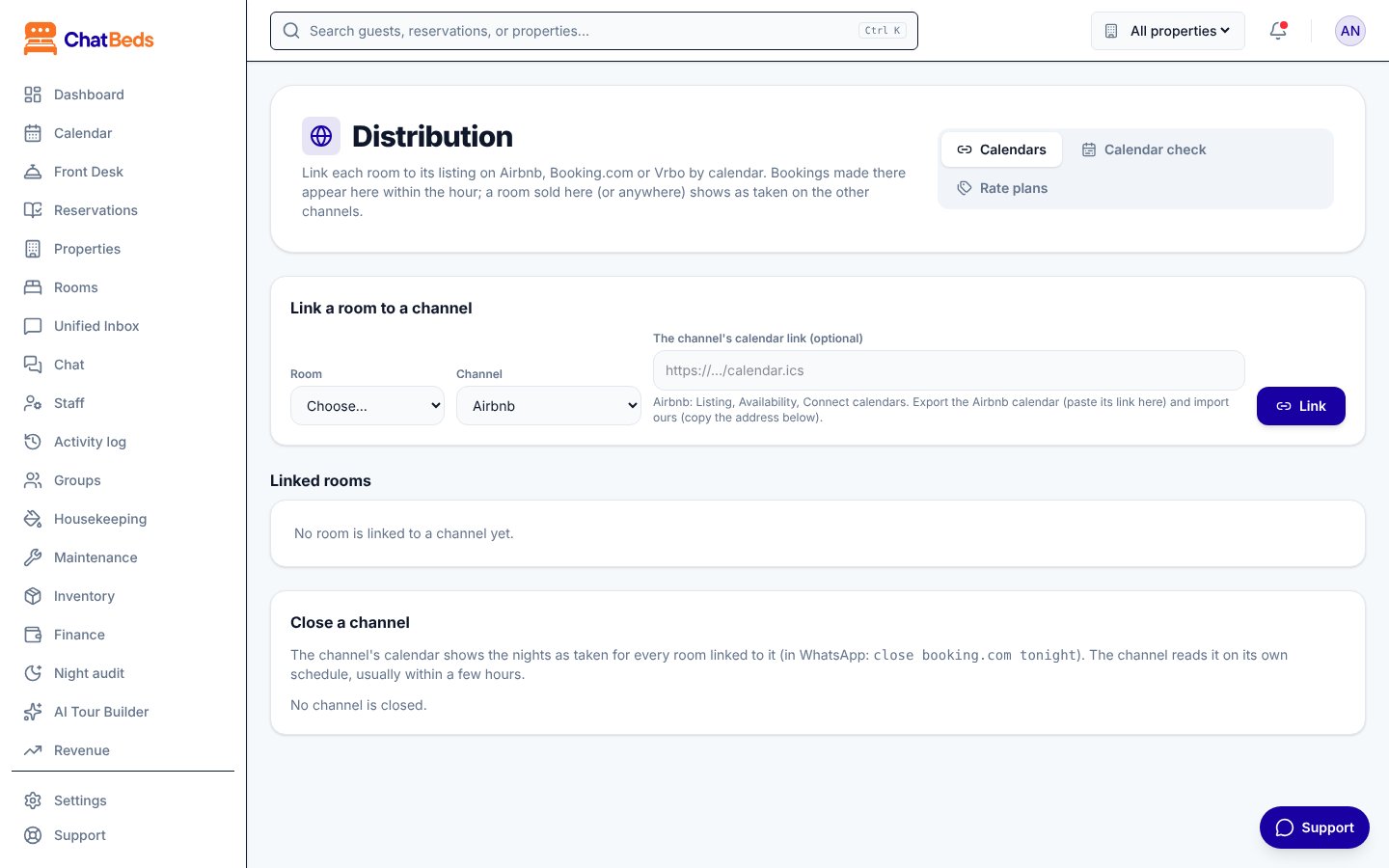
Open Distribution
Go to Distribution and stay on the Calendars tab.
Link the room
Under Link a room to a channel, choose the Room and the Channel. If you already have the channel's export link, paste it in The channel's calendar link (optional). Click Link.
Give the channel our address
The room now shows under Linked rooms. Copy the address under Give this address to (channel) (import calendar) and paste it into the channel's import calendar.
Paste the channel's link (if you skipped it)
Paste the channel's export link in the room's calendar link box and click Save.
Where to find the links on each channel
| Channel | Where to look |
|---|---|
| Airbnb | Listing → Availability → Connect calendars. Export the Airbnb calendar (paste its link in ChatBeds) and import ours. |
| Booking.com | Extranet → Rates & Availability → Sync calendars. |
| Vrbo | Calendar → Import/Export. |
| Expedia (vacation rentals) | Calendar sync. |
| Google Calendar | Settings → Integrate calendar → Secret address in iCal format. |
One listing, one room
iCal works room by room. Each listing on a channel is linked to one bookable room, such as room 101.
How often it syncs
- ChatBeds reads channels when you save a link, every hour, and whenever you click Sync now on a linked room.
- Channels read ChatBeds on their own schedule, often every 1 to 3 hours. Airbnb and Booking.com don't let anyone change this.
Each linked room shows when it was last read and when the channel last read us.
What happens to channel bookings
- A new booking on the channel books the room in ChatBeds. It shows as, for example, "Airbnb (calendar)", with the guest "Airbnb guest" and a price of $0. Your front desk enters the guest's name and the price. Managers get an alert, as for any booking.
- New dates on the channel move the booking here, if the room is free.
- A booking removed from the channel before arrival is cancelled here, with no fee.
- No WhatsApp message goes to channel guests, because there is no phone number.
Clashes
Because channels read calendars on their own schedule, two channels can sometimes sell the same room for the same night. When this happens:
- Nothing is changed in ChatBeds.
- Managers and the front desk manager get a critical alert.
- The clash is listed on Distribution → Calendar check until you fix it.
To fix it, move one guest to another room, or cancel the booking on the channel.
The Calendar check tab
Calendar check shows each linked room for the next 30 nights, coloured by who has it: Booked here, Booking page, From a channel's calendar, Partner or Closed on a channel. Above the grid you see:
- Bookings a channel has that the room here cannot take (clashes to fix).
- Not available on a channel, not booked here yet. These may be nights you just freed that the channel has not read again yet. If they are still there after 3 hours, they are booked here.
The morning briefing also tells you when there are clashes waiting.
Close a channel
You can stop one channel from selling some nights, while your other channels and your booking page keep selling.
On Distribution → Calendars, use Close a channel. Choose the Channel, the First night and the Last night (optional), then click Close. To undo, click Open on the closed row.
The nights show as taken on that channel's calendar only, for every room linked to it. Agoda has no calendar link in ChatBeds yet, so close it on Agoda's own extranet.
Unlink a room
On the linked room, click Unlink, then Yes, unlink. Bookings already made stay. To stop reading a channel's calendar but keep sending ours, clear the link box and click Stop reading.
Common questions
No. Your rates, rate plans and stay rules apply to bookings made in ChatBeds, on your booking page and by partners. A channel linked by calendar keeps its own prices.
Check the link on the channel and paste it again. If the channel sends nothing at all while bookings from it are still to come, ChatBeds cancels nothing and asks you to check the address.
Still need help?