
Your booking page
Take direct bookings on your own booking page, with card payments through your own Stripe account and confirmations on WhatsApp.
Your booking page is a public page where guests book Pearl Hotel directly. ChatBeds takes no commission on these bookings. When a guest pays by card, the money goes to your own Stripe account.
Each booking is an ordinary booking. It shows on the calendar with the source Website, and your front desk gets an alert just like any other booking.
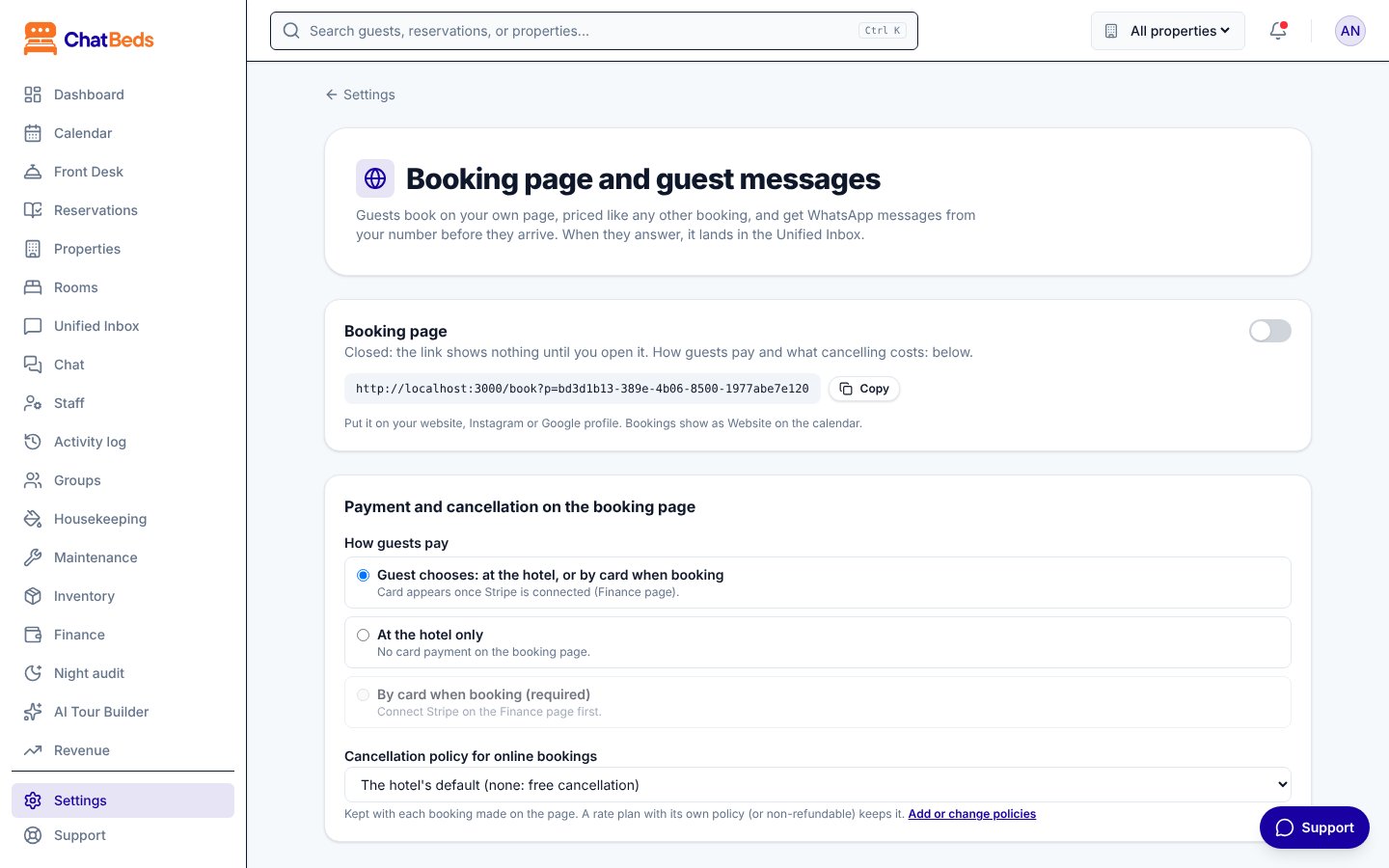
Open your booking page
The booking page is closed until you open it. Only an owner or admin can change these settings.
Go to the settings
Open Settings → Booking page and guest messages.
Open the page
Under Booking page, switch on Booking page open. The page now says "Open: anyone with the link can book."
Copy your link
Click Copy next to your page's address. Put it on your website, Instagram or Google profile, or send it to guests who ask.
A closed page
While the page is closed, the link shows nothing. A guest who opens it sees "This booking page is not open."
What guests see and do
- The guest picks dates and the number of guests.
- They see each room type that has rooms free, with its price. If you sell rate plans (for example, Bed and breakfast or Non-refundable), each plan is shown too.
- They choose any extras you offer, like breakfast or a pick-up.
- They give their name, a WhatsApp number with the country code, and if they like an email and a note.
- They pay at the hotel or by card, depending on your settings.
Prices come from the same engine as your dashboard. Your seasons, closed dates and minimum or maximum stays all apply. See Rates and RevBot.
The guest's note and arrival time show on the booking, so your front desk can see them.
Choose how guests pay
Under Payment and cancellation on the booking page, choose one option for How guests pay:
| Option | What happens |
|---|---|
| Guest chooses: at the hotel, or by card when booking | The guest picks. Card appears once Stripe is connected. |
| At the hotel only | No card payment on the booking page. |
| By card when booking (required) | The guest must pay by card to book. You need Stripe connected first. |
To take cards, connect your Stripe account on the Finance page. See Payments.
How "card required" works
- The room is held for 60 minutes while the guest pays on the Stripe page.
- If the guest does not pay in time, the booking is let go at no charge. It is cancelled with the reason "Not paid online in time" and your front desk is told.
- Once paid, the booking stands and the guest gets the WhatsApp confirmation.
- If you disconnect Stripe later, the page switches back to "guest chooses", so it keeps taking bookings.
Stopping fake holds
"Pay at the hotel" bookings only need a WhatsApp number. Someone with many numbers could hold rooms without paying (each booking alerts your front desk). If you want to rule this out, choose By card when booking (required). An unpaid booking then holds a room for an hour at most.
Cancellation policy for online bookings
Under Cancellation policy for online bookings, choose your default policy or any policy you have made. To make or change policies, click Add or change policies (or go to Settings → Cancellation policies).
- Each offer on the page tells the guest what cancelling costs.
- The policy is saved with each booking. Changing it later does not change bookings already made.
- A rate plan with its own policy, or a non-refundable plan, keeps that policy.
- To cancel, the guest messages your hotel. Your team cancels the booking.
The guest's own page
Every booking gets a private guest page. The link is in the guest's WhatsApp messages. On it, the guest can:
- see the booking, the room once you assign it, and the bill;
- see what is paid and what is still owed;
- pay what is owed by card (when card payments are on);
- add extras, priced like extras at booking;
- say when they will arrive and leave a note (before arrival).
To send one guest their page by hand, open the booking and click Copy guest link.
Confirmations and reminders on WhatsApp
Guests get messages from your hotel's own WhatsApp number. You switch each one on separately in Settings → Booking page and guest messages, under Messages to guests.
| Message | When it goes |
|---|---|
| Booking confirmation | When the booking is made (not for bookings from partners or channels) |
| Payment reminder | 1 to 3 days before arrival, if something is owed and you take cards online |
| Check-in reminder | The day before arrival |
| Extras before arrival | 2 or 3 days before arrival, if you have extras on offer |
- Reminders go between 10:00 and 20:00 hotel time.
- Each guest gets each message once.
- The same page shows whether WhatsApp has approved each message, and the last messages sent (sent, not sent and why, or failed).
Connect WhatsApp first
Nothing is sent until your hotel's WhatsApp number is connected (Settings → WhatsApp number).
When a guest replies, their message lands in the Unified Inbox for a person on your team to answer.
Common questions
No. If the same form is sent twice (a double click, for example), ChatBeds keeps only the first booking.
The booking is refused and the guest sees the new total, so nobody books at a price you no longer offer.
Yes. Guests cannot book more guests than the room takes, an arrival in the past, or more than 30 nights.
Not yet. Every rate plan sold on a room type is offered on the page. Don't sell a private plan (a corporate rate, for example) on a room type while the page is open.
Still need help?
Selling
Sell your rooms directly, keep your calendars in step with Airbnb and Booking.com, and set the right price every night.
Channels (Airbnb, Booking.com and more)
Link each room's calendar with Airbnb, Booking.com, Vrbo, Expedia or Google Calendar so a room sold in one place shows as taken everywhere.