
Rates and RevBot
Set base rates, weekday rates, seasons, rate plans and stay limits, and use RevBot's price suggestions or autopilot.
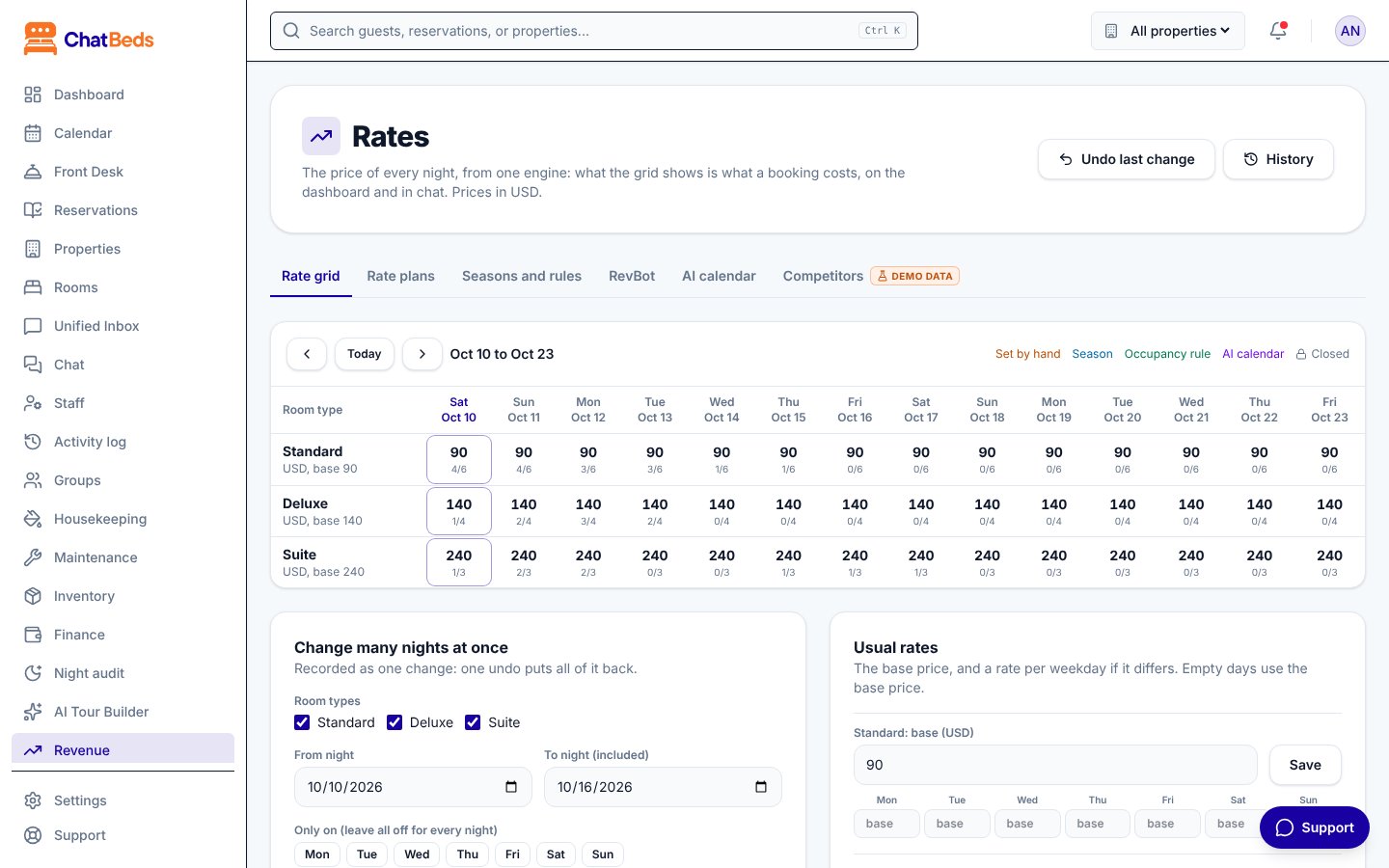
One pricing engine sets the price of every night. What you see on the rate grid is exactly what a booking costs, on the dashboard, on your booking page and in WhatsApp.
You manage rates on the dashboard under Revenue. The page has these tabs: Rate grid, Rate plans, Seasons and rules, RevBot, AI calendar and Competitors.
Who can change rates
Everyone signed in can see rates. Only an owner or admin can change them on the dashboard. In WhatsApp, the owner and GM can change rates, and the front desk manager can look at them.
How a night is priced
For each room type and night, ChatBeds uses the first of these that exists:
- Set by hand: a price you typed on the grid or in WhatsApp (or a RevBot suggestion you applied).
- AI calendar: a price from the AI calendar.
- Season: a fixed price, or the usual rate moved by a percentage, between two dates.
- Weekday rate: the room type's price for that day of the week.
- Base price: the room type's standard price.
The grid colours each night by where its price came from.
Base price and weekday rates
On the Rate grid tab, open Usual rates. Set the base price, and a rate per weekday if it differs (for example, higher on Fridays and Saturdays). Empty days use the base price.
Seasons
On Seasons and rules, click Add under Seasons. Give the season a name, the First night and Last night, the room types, and the rate. The rate can be a fixed price or The usual rate moved by %. You can also set a Minimum stay for arrivals in the season.
Where two seasons overlap, the shorter season wins.
Occupancy rules
Occupancy rules move the rate when a room type gets full. For example: "When sold (%) or more" 80, "Move the rate by (%)" 10.
- Only the highest threshold reached applies.
- You can limit a rule to nights within a number of days.
- A price set by hand (or by the AI calendar) is never moved by a rule.
Rate plans
On Rate plans, click Add a rate plan. A plan is worked out from the room type's rate, or from another plan, and changes it by a percent or an amount. For example, "Non-refundable, 10% cheaper".
A plan can also have:
- Meals: Room only, Bed and breakfast, Half board, Full board or All inclusive.
- Minimum nights and Maximum nights.
- Non-refundable, or its own Cancellation policy.
- One room type only, or every room type.
- Default plan, and On sale or off sale.
A plan that has been used by a booking can't be deleted. Take it off sale instead.
Change one night or many
- One night: click a night on the grid. Set the price, close it, set a minimum or maximum stay, or close one rate plan only.
- Many nights: use Change many nights at once. Pick the room types, From night and To night (included), and optionally only some weekdays. Then choose what to do: set the price, move it by % or an amount, go back to the usual rate, close, open, or set a minimum or maximum stay. Up to 365 days at once.
Closing dates and stay limits
- Closed means no new bookings for that night. You can close a whole room type or one rate plan.
- Minimum and maximum stay are checked on the arrival night.
- These rules apply to new bookings only. Your team can still extend a guest's stay over a closed night.
Undo a change
Every change to the grid, base prices and weekday rates is recorded. Click Undo last change, or open History and click Undo on a change. The old prices come back exactly.
You can't undo a change if a newer change touched the same nights. Undo the newer one first.
Not in the history
Making or editing rate plans, seasons and occupancy rules is not recorded. To undo those, change them back on their tabs.
Rates in WhatsApp
| Send | What it does |
|---|---|
rates | The next 7 nights' rates (or rates deluxe next week) |
rate 220 | Set tonight's rate (rate deluxe 250 this weekend) |
increase suites by 15% | Raise rates (tonight unless you say when) |
drop standard rooms to 140 this weekend | Lower rates |
flash sale 20% | A percentage off tonight, every room type |
close deluxe tonight | Stop new bookings (open deluxe tonight to undo) |
min stay 3 this weekend | Minimum nights for stays arriving then |
rate history | The last rate changes and who made them |
revert rate | Undo the last rate change |
revert rate to undo.RevBot
RevBot looks at each room type for the next 14 nights. It checks how many rooms are sold and how many were booked in the last 7 days (the pace). Then it suggests a change:
| The night | Suggestion |
|---|---|
| 90% sold or more | +15% |
| 75% sold or more | +10% |
| 50% sold or more, and many rooms booked in the last 7 days | +10% |
| Tonight or tomorrow, under 20% sold | −15% |
| Within 3 days, under 30% sold | −10% |
RevBot leaves alone closed nights and nights where a person set the price by hand. It looks again after every booking, cancellation and no-show. New suggestions go to the owner and GM on WhatsApp.
Limits
RevBot always stays inside your limits:
- Floor and Ceiling: it never suggests below or above these. You can set them for the whole hotel or per room type.
- Largest single change (%): the most it moves a rate at once (20% unless you change it). It also never drifts further than this from the night's usual rate, however many times you apply.
Apply, dismiss or undo
Open Revenue → RevBot. Click Look now to check again. For each suggestion, click Apply or Dismiss, or use Apply all or Dismiss all. To undo, use Undo last change or History.
A dismissed night is not raised again for 24 hours. A suggestion whose night changed price since it was made is refused as out of date.
Autopilot
With autopilot on, RevBot applies its own suggestions within your limits and tells the owner and GM what it changed. You can switch it on only when every room type on sale has a floor and a ceiling.
- Dashboard: Revenue → RevBot → Limits and autopilot. Tick Autopilot: let RevBot set rates within these limits.
- WhatsApp:
autopilotshows your limits. Sendautopilot onorautopilot off,floor 90,ceiling 400,floor deluxe 90ormax change 15%.
floor 90, ceiling 400, max change 15%, autopilot on or autopilot off.AI calendar and competitors
- AI calendar suggests a price per night for up to 90 days, taking local holidays and events into account. Prices set by hand are kept. It is recorded as one change, so you can undo it.
- Competitors shows sample data until a rate-shopping service is connected. These figures are not real, and RevBot never uses them.
For occupancy, ADR and RevPAR figures, see Reports and figures.
Still need help?
Channels (Airbnb, Booking.com and more)
Link each room's calendar with Airbnb, Booking.com, Vrbo, Expedia or Google Calendar so a room sold in one place shows as taken everywhere.
Extras and upsells
Offer paid extras like breakfast or an airport pick-up on your booking page, on each guest's own page and before arrival.