
Payments
Record cash, card and bank transfer payments, send Stripe card payment links, and handle refunds and mistakes.
Every booking has one bill. Payments go on the bill, and the balance updates by itself. You can take a payment on the dashboard, in WhatsApp, or let the guest pay online by card.
Ways to take a payment
| Method | How |
|---|---|
| Cash | Record it on the booking, or in WhatsApp |
| Card (your card machine) | Record it on the booking, or in WhatsApp |
| Bank transfer | Record it on the booking, or in WhatsApp |
| Card online | Send a card payment link. The payment is recorded by itself when the guest pays |
Record a payment
- Open the booking.
- Click Take payment.
- Enter the amount and choose how it was paid: cash, card or bank transfer.
- Save. The bill shows what is paid and what is still owed.
Taking more than is owed
In WhatsApp, a payment can be at most what the guest owes. This stops typing mistakes (4000 for 400). To record more, like a deposit, use the booking on the dashboard.
Card payments through your Stripe account
Each hotel uses its own Stripe account. The money goes straight to you, and ChatBeds never sees card numbers. Once Stripe is connected, you can send card payment links and take cards on your booking page.
Connect Stripe
Only an owner or admin can do this.
Open Card payments
Go to Finance → Card payments.
Add the webhook in Stripe
In your Stripe dashboard, go to Developers → Webhooks and add the address shown on the ChatBeds page. Choose the four events listed there.
Paste your keys
Under Connect Stripe, paste your Secret key and the Webhook signing secret. Click Save and test the key.
The page then says Connected. Your keys are stored safely and never shown again. A test key works too (the page says Connected, test mode), and no real money moves.
Send a card payment link
Open the booking and click Card payment link. Leave the amount for what is owed, or type less for part of it. Copy the link and send it to the guest.
- The link stays open for 23 hours, then closes.
- When the guest pays, the payment goes on the bill by itself. Whoever made the link, the front desk manager and the GM get a WhatsApp message.
- A link that is still open counts as paid when you make the next one, so a guest can never pay the whole bill twice.
Turn card payments off
On Finance → Card payments, click Turn off card payments. Links already sent are closed first, so no guest can pay a link that would not reach the bill.
Refunds
Only owners and admins can give money back.
- Open the booking and click Refund.
- Enter the amount (at most what has been paid) and how it was given back: cash, card, bank transfer, or Stripe.
- Say why, then click Record the refund.
Refunding a card payment made online
Make the refund in your Stripe dashboard first. Then record it in ChatBeds with Stripe (refunded in Stripe). Recording a refund in ChatBeds does not move any money.
Fixing mistakes (voids)
A payment, refund, extra, fee or charge entered by mistake is voided, never deleted. Only owners and admins can void.
- On the bill, click Void next to the line.
- Give a reason and confirm.
The line stays on the bill, struck through, with who voided it and why. It no longer counts.
- Room nights and tax can't be voided. Change the room price instead, and tax follows.
- A payment can't be voided while a refund of it is still on the bill. Void the refund first.
- Money that really came through Stripe is not voided. Refund it instead.
The payments ledger
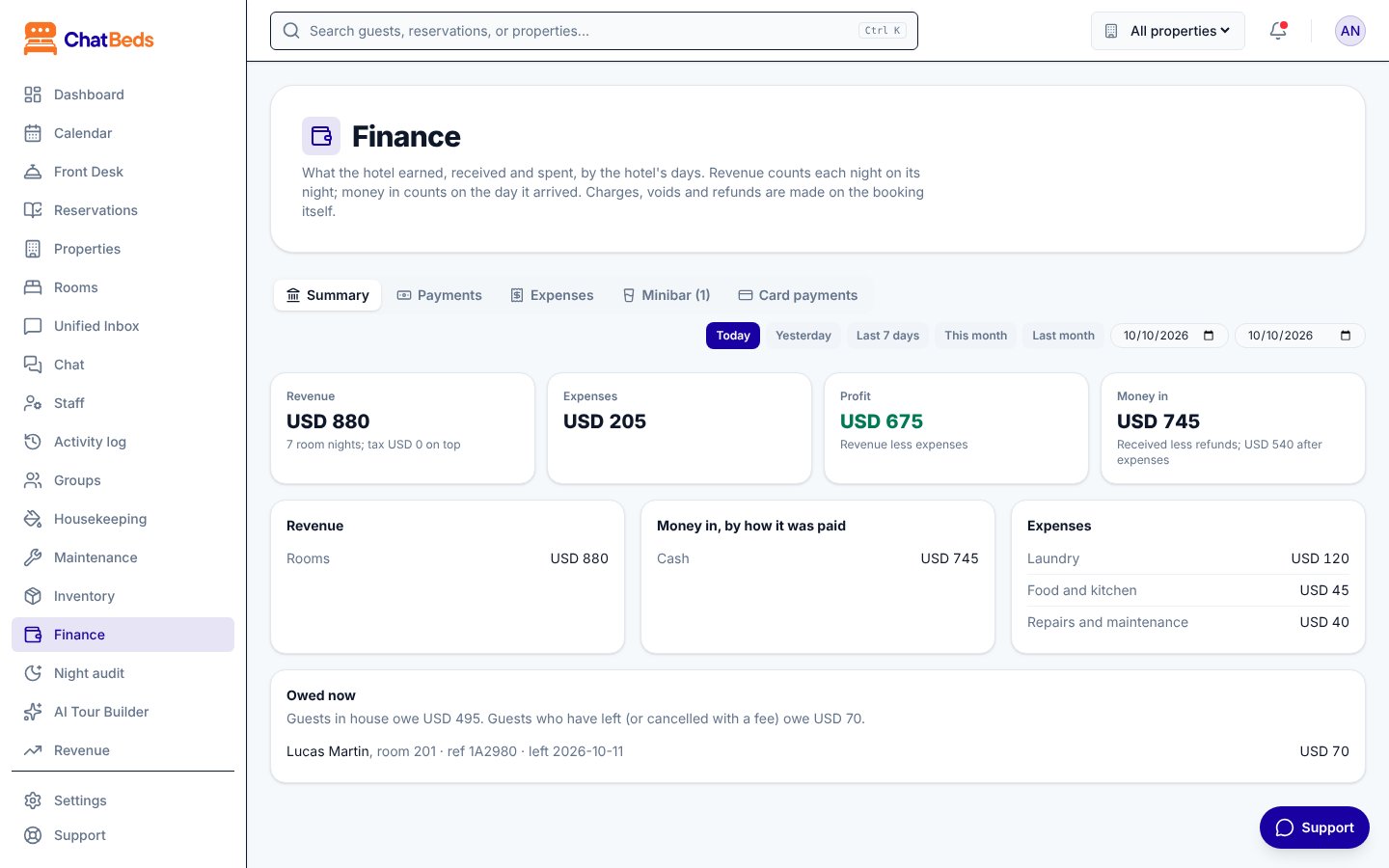
Finance → Payments lists money in and out by the day it arrived: payments, refunds, voided lines (struck through) and links not paid yet. At the top you see what was received, refunded, the net, and the totals by method.
Who can do what
| Owner, admin | Front desk | |
|---|---|---|
| Take a payment, make a card link, see the payments ledger | Yes | Yes |
| Void a line, give money back | Yes | No |
| Stripe settings | Yes | No |
For taking payments at check-out, see Folios and payments at the desk.
Still need help?