
The set-up wizard
The five set-up steps after you sign up, and the Finish setting up checklist on your dashboard.
Right after you sign up, ChatBeds takes you through a short set-up. It has five steps, shown in a bar at the top of the page:
| Step | What it asks | Required? |
|---|---|---|
| 1. Your property | Name, type, rooms, country and city | Yes |
| 2. How you work | Your current system, booking sites, how your team talks | No, you can skip it |
| 3. Your goals | What matters most to you, up to 3 | No, you can skip it |
| 4. Your plan | Start a free trial, or continue on Free | Yes, you choose one |
| 5. WhatsApp | Connect your hotel's number and add staff | No, you can do it later |
Every step is saved as you go. If you close the tab, you come back to the same place next time you sign in. You can also press Back to change an earlier answer.
Until you finish the wizard, ChatBeds brings you back to it from any page. This makes sure your first property and plan are in place before you start.
Step 1: Your property
The page is called Tell us about your property. ChatBeds sets up your rooms from your answers, and you can change everything later.
- Property name, for example "Pearl Hotel".
- What kind of property is it? Hotel, Boutique hotel, B&B, Guesthouse, Hostel, Serviced apartments, Resort or Other.
- Number of rooms and Properties you run.
- Country and City. Your country also sets the prices you see for ChatBeds plans.
- Usual price per night (optional) and Currency.
- Your role and Your mobile (WhatsApp) (optional).
When you continue, ChatBeds creates your property with the number of rooms you entered. You can rename rooms, add room types and set prices later under Rooms.
Step 2: How you work
The page is called How do you work today? It helps ChatBeds set up the right things and offer to bring your data across.
- Current system, for example Excel, Cloudbeds or pen and paper.
- Channel manager, if you use one.
- Where do you get bookings? Booking.com, Expedia, Airbnb, Agoda and others.
- How does your team talk today? WhatsApp groups, phone calls, radios, paper or another app.
- Team size.
- Do you close for part of the year? Choose Open all year or Seasonal.
Press Continue, or Skip if you would rather not answer now.
Step 3: Your goals
The page asks What matters most to you? Pick up to 3, for example:
- No more double bookings
- More direct bookings with card payments
- My team works from WhatsApp
- Faster room turnover
- Better prices and revenue (RevBot)
- Finance, reports and night audit
- WhatsApp messages to guests
- Run several properties in one place
Press See my plan. Your goals help ChatBeds recommend the plan that fits.
Step 4: Your plan
The page shows Your recommended plan with the reasons, for example "You have 24 rooms; Free covers up to 3." The other plans are shown beside it, in your currency.
- Choose Monthly or Yearly (2 months free).
- Press Start free trial on the plan you want.
- Add your card on the secure Stripe page. Nothing is charged until the 14-day trial ends.
- You come back to the wizard, and the plan is in place.
If you have 3 rooms or fewer, you can press Continue on Free instead. With 4 rooms or more, Free is not available, so you choose a plan and start the trial.
If you close the Stripe page before adding a card, you see "The checkout was closed before a card was added." Choose a plan when you are ready.
Read more in Plans and the free trial.
Step 5: WhatsApp
The page is called Run your hotel from WhatsApp. Here you connect your hotel's WhatsApp number with Meta. You have two choices:
- Connect a new number, for a number that is not on WhatsApp yet.
- Use my WhatsApp Business app number, to keep using the app on your phone with the same number.
When the number is connected, press Add your staff to go to the Staff page, or Go to the dashboard. If you are not ready, press I'll do it later. You can always connect from the Chat page.
Full details are in Connect your number.
The "Finish setting up" checklist
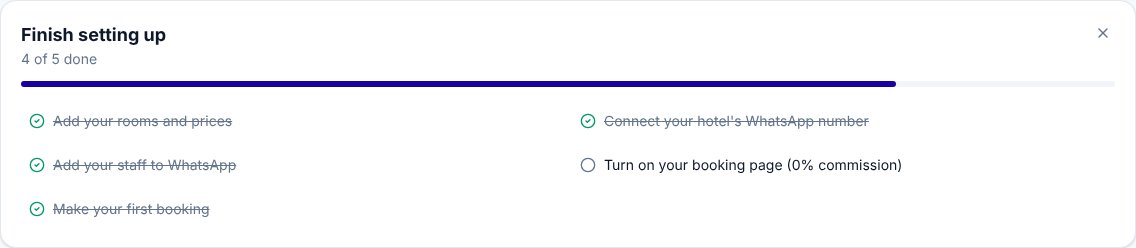
When the wizard is done, your dashboard shows a card called Finish setting up, with a progress bar (for example "2 of 5 done"). Each line opens the right page:
| Item | Where it takes you |
|---|---|
| Add your rooms and prices | Rooms |
| Connect your hotel's WhatsApp number | Chat |
| Add your staff to WhatsApp | Staff |
| Turn on your booking page (0% commission) | Settings → Booking page and guest messages |
| Make your first booking | Reservations |
Items tick themselves off as you complete them. The card disappears when all five are done. You can also hide it with the X in its corner.
Still need help?