
Connect your number
Link your hotel's WhatsApp number to ChatBeds in a few minutes with Meta, using a new number or your WhatsApp Business app number.
Your hotel's WhatsApp number is the number your staff send commands to and the number alerts come from. Guests who write to it reach your Unified Inbox.
You connect it once, from the Chat page or from the last step of the set-up wizard. It takes a few minutes with Meta, the company behind WhatsApp.
Before you start
You will need:
- A Facebook login for the person who manages your business on Meta.
- The phone with the number, or access to it, to receive a code by SMS or voice call.
- A few minutes without interruption. Meta's window walks you through each step.
Only the owner, or someone allowed to manage WhatsApp, can connect a number.
One number, one system
Connect a number only if no other product is using it. A WhatsApp number can deliver its messages to only one place. If another booking tool, chatbot or messaging service already uses the number, its messages will stop reaching that service. Use a different number, or disconnect it there first.
Choose your option
When you open Chat → WhatsApp number with no number connected, you see two buttons.
Choose this for a number that is not on WhatsApp yet, for example a new SIM or a landline.
- Meta checks the number with a code by SMS or call.
- ChatBeds then switches the number on for WhatsApp and sets a 6-digit security PIN for it (two-step verification). ChatBeds keeps the PIN safely, so you do not need to remember it.
- The number is used only through ChatBeds. You do not open it in the WhatsApp app on a phone.
Connect step by step
Open the Chat page
In the menu, open Chat. The WhatsApp number tab shows Connect this hotel's WhatsApp number.
Press your option
Press Connect a new number or Use my WhatsApp Business app number. Meta's window opens. If nothing opens, allow pop-ups for app.chatbeds.app and try again.
Sign in and choose your business
In Meta's window:
- Sign in with Facebook.
- Pick your business, or create one.
- Pick your WhatsApp Business account, or create one.
- Enter or choose the phone number and the name people will see.
- Verify the number with the code Meta sends by SMS or call.
Meta shows ChatBeds' name in the window, so you know who you are giving access to.
Wait for ChatBeds to finish
While you are in Meta's window, the page says "Finish the steps in the Meta window." When you finish, the window closes and ChatBeds does the rest by itself.
Check the result
The page now shows Connected with your number. ChatBeds has also sent its message templates to WhatsApp for approval.
ChatBeds can then send and receive WhatsApp messages for this number only. It cannot see your other numbers or your personal account.
After you connect
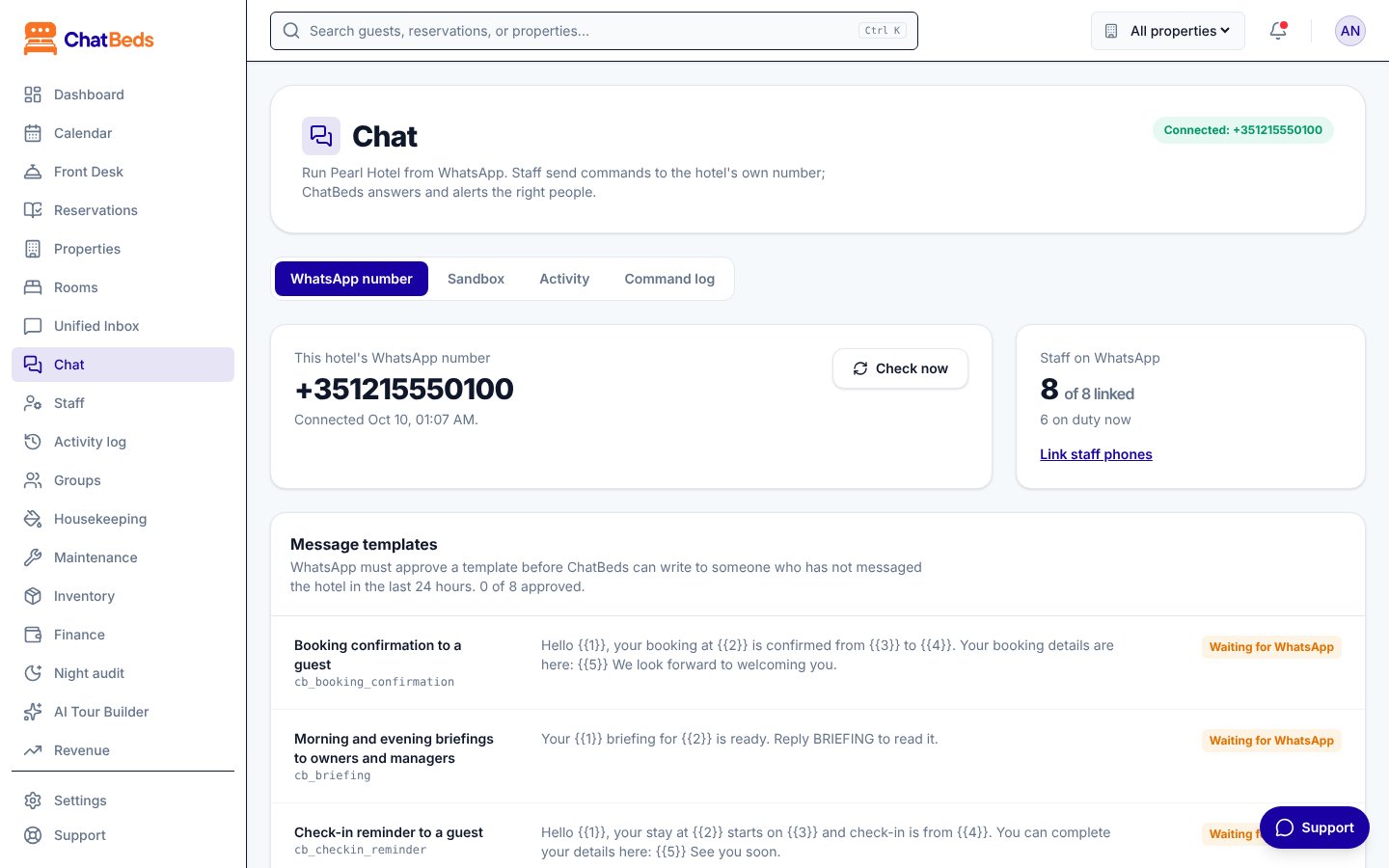
The WhatsApp number tab shows:
- This hotel's WhatsApp number, and the name people see.
- Check now, which asks WhatsApp whether the number is working. A healthy number shows "WhatsApp answers for this number", with its quality rating.
- Staff on WhatsApp: how many staff are linked and how many are on duty.
- Message templates and their approval status.
- Reply to people who are not staff: an optional automatic reply for guests.
- Chat language: the language ChatBeds replies in.
- Disconnect.
Message templates
WhatsApp only lets a business start a conversation with someone who has not written in the last 24 hours by using a message it has approved first, called a template. ChatBeds sends its templates for approval as soon as you connect. These include the staff alert, the staff invite and a few guest messages.
Approval is WhatsApp's decision and usually takes a few minutes to a day. You see each template as Approved, Waiting for WhatsApp, Rejected or Not submitted. If any are not submitted, press Submit to WhatsApp.
Until the templates are approved, your team can still send commands and get replies. See Troubleshooting.
Paying Meta for messages
ChatBeds does not charge for WhatsApp messages. Meta bills your WhatsApp conversations directly to your business.
To make sure messages keep flowing, add a payment method in Meta's WhatsApp Manager for your WhatsApp Business account. Do this right after you connect.
Disconnect a number
- Open Chat → WhatsApp number.
- Under Disconnect, press Disconnect this number and confirm.
ChatBeds forgets the number's access. Staff commands and alerts stop until a number is connected again. Your staff list, their links and your message history are kept.
The Advanced form (for experts)
Below the two buttons is a link: Advanced: connect with the IDs and a token from your own Meta app. It is for technical teams who manage their own Meta developer app. It asks for:
- Phone number ID
- WhatsApp Business Account ID
- Access token: a permanent token, not the 24-hour test token
ChatBeds checks these with WhatsApp before saving. The token is stored encrypted and never shown again.
Most hotels never need this form. Use the buttons above instead.
Common problems
| You see | What to do |
|---|---|
| "The Meta window was closed before the number was connected." | Press your option again and finish all the steps. |
| "Meta finished without a phone number." | Add a number to your WhatsApp Business account in Meta's window, then try again. |
| "That WhatsApp number is already connected to another property." | The number is used by another property on ChatBeds. Disconnect it there first. |
| A message about a two-step verification PIN | Turn off two-step verification for the number in Meta's WhatsApp Manager (Phone numbers, Settings), then connect again. |
More fixes are on the Troubleshooting page.
Next step
Still need help?