
Roles and permissions
Choose what each person can see and do, on the dashboard and on WhatsApp, and at which properties.
Every person in ChatBeds has a role. The role decides what they can see and change. ChatBeds checks the role on every action, so a person can never do more than their role allows, even if they try a link or a command they should not use.
There are two kinds of role:
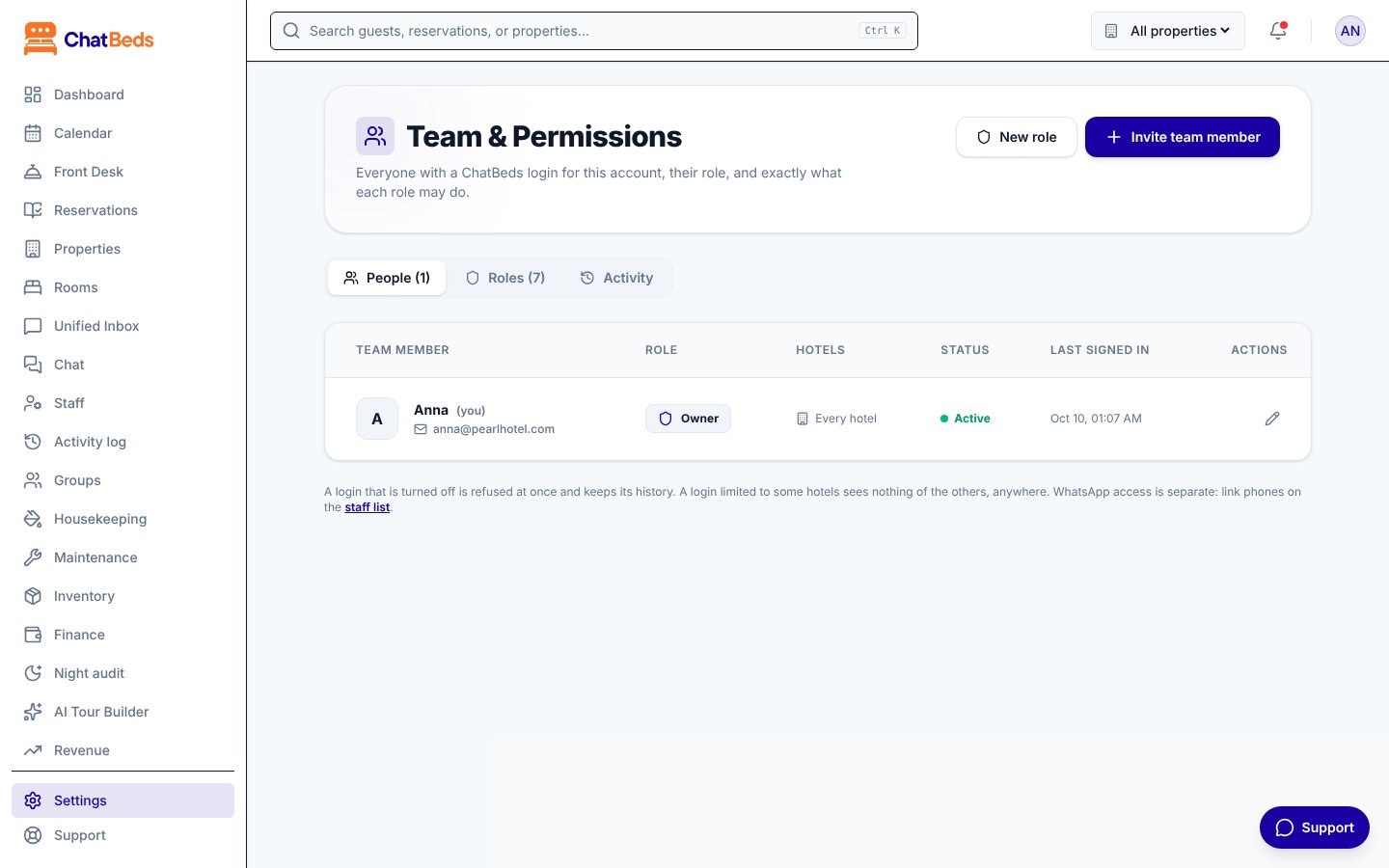
- Dashboard roles for people who sign in to the web app. You manage them in Settings → Team and permissions.
- WhatsApp staff roles for people on the Staff list. They decide which chat commands a phone can send. See WhatsApp staff roles below.
Built-in dashboard roles
Every account has these roles. They cannot be changed, but you can copy them to make your own.
| Role | For |
|---|---|
| Owner | The account's owner. Can do everything, and is the only role that can make another owner. |
| Admin | The general manager. Can do everything, including the team and roles, but cannot make or change an owner. |
| Front desk | Reception: bookings, guests, check-in and check-out, payments and the night audit. |
| Accountant | Bookkeeping: the figures, payments, refunds, expenses and reports. Changes no bookings. |
| Housekeeping | Housekeepers and supervisors: room status, inspections, cleaning and stock. |
| Maintenance | Technicians: tickets, rooms out of order and stock. |
| Staff | Anyone else. Can look at bookings, housekeeping and maintenance, but changes nothing. |
What each role can do
| Ability | Owner | Admin | Front desk | Accountant | Housekeeping | Maintenance | Staff |
|---|---|---|---|---|---|---|---|
| See bookings and guests | Yes | Yes | Yes | Yes | – | – | Yes |
| Make and change bookings | Yes | Yes | Yes | – | – | – | – |
| Check guests in and out | Yes | Yes | Yes | – | – | – | – |
| Talk to guests (Unified Inbox) | Yes | Yes | Yes | – | – | – | – |
| Take payments and send payment links | Yes | Yes | Yes | Yes | – | – | – |
| Refunds, voids and expenses | Yes | Yes | – | Yes | – | – | – |
| See the figures and reports | Yes | Yes | – | Yes | – | – | – |
| Run the night audit | Yes | Yes | Yes | Yes | – | – | – |
| Clean and inspect rooms | Yes | Yes | – | – | Yes | – | – |
| Report a maintenance problem | Yes | Yes | Yes | – | Yes | Yes | – |
| Handle maintenance tickets | Yes | Yes | – | – | – | Yes | – |
| Record stock used, counted or received | Yes | Yes | – | – | Yes | Yes | – |
| Buy stock (purchase orders) | Yes | Yes | – | – | – | – | – |
| Add and change WhatsApp staff | Yes | Yes | – | – | – | – | – |
| Change rates | Yes | Yes | – | – | – | – | – |
| Change the hotel's setup | Yes | Yes | – | – | – | – | – |
| Manage WhatsApp, the team and billing | Yes | Yes | – | – | – | – | – |
When a role does not include a page, the page says "Your role does not include this page". Buttons for actions the role cannot do are not shown.
Make your own role
If the built-in roles do not fit, make your own. For example, a "Night manager" role.
Open the Roles tab
Go to Settings → Team and permissions and open the Roles tab.
Start a role
Click New role, or click Copy on a built-in role to start from it.
Pick the permissions
Give it a name and a short description, then tick what people with this role may do. You can only tick permissions you have yourself.
Save it
Click Make role. Then give it to people on the People tab.
When you change a role, everyone who has it gets the new permissions straight away. You cannot delete a role while people still have it: give them another role first.
Invite someone to the dashboard
- Go to Settings → Team and permissions and click Invite team member.
- Enter their name and email, pick a role, and choose their hotels.
- ChatBeds emails them a one-click sign-in link. They join your account with that role.
Until they sign in, they show as Invited, not signed in yet. You can Send the invitation again, or Copy invite link and send it by WhatsApp.
To stop someone signing in, turn their login off on the People tab. They are refused at once, and their history is kept. You can turn the login back on later.
The safety rules
- Only people who can manage the team can change the team or roles.
- Nobody can give a permission or a hotel they do not have themselves.
- Only an owner can make, change or turn off another owner.
- The account always keeps at least one owner.
- Nobody can change their own role or their own hotels. Ask another owner or admin.
- Every change is recorded on the Activity tab of Settings → Team and permissions.
Access per property
If you have more than one property, choose which ones each login can use:
- Every hotel, including hotels added later, or
- Only these hotels, then tick the ones they need.
A login limited to some hotels sees nothing of the others: not in lists, totals, reports or search. Owners always have every hotel. A few pages are about the whole account, so they need access to every hotel: Plan and billing, adding a property, and the Owner Portal.
WhatsApp staff roles
People on the Staff list get one of these roles: Owner, General Manager, Front Desk Manager, Receptionist, Night Auditor, Housekeeping Supervisor, Housekeeper, Maintenance Lead or Maintenance Technician.
| In WhatsApp | Who can do it |
|---|---|
help, clock in, clock out, my hours | Everyone |
| Make bookings, walk-ins, check-in and check-out, moves | Owner, GM, Front Desk Manager, Receptionist, Night Auditor |
| See rates | Owner, GM, Front Desk Manager |
| Change rates | Owner and GM only |
| Report a room clean, dirty or in progress | Housekeepers, Housekeeping Supervisors, the front desk, GM and owner |
| Pass or fail a room at inspection | Housekeeping Supervisors, GM and owner |
| Report a maintenance problem | Everyone |
| Take and close tickets | Maintenance team, GM and owner |
| Take payments and send payment links | Owner, GM and the front desk |
| Record expenses | Owner, GM and supervisors |
| See profit and loss | Owner and GM |
who is on duty | Owner, GM and supervisors |
So only the front office, the GM or the owner can make a reservation. If anyone else asks, in any language or by voice note, ChatBeds says no and changes nothing:
help to see what you can do.Each person can send help to see exactly the commands their role allows. The full list is in WhatsApp commands. To set someone's staff role, see Staff and shifts.
Still need help?