
Add your team
Add staff with their WhatsApp numbers, invite them to the hotel's number, and remove them when they leave.
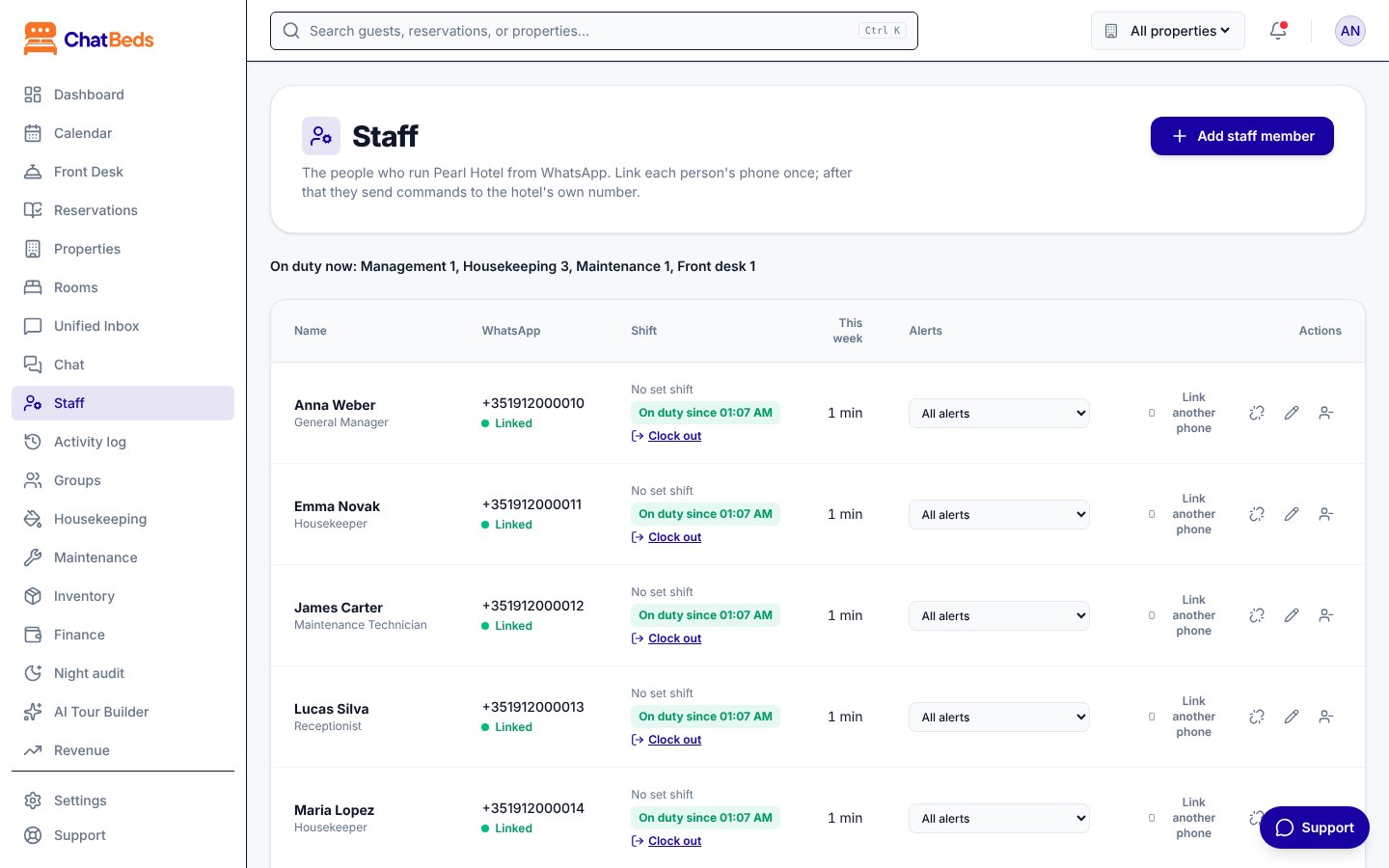
Each person who works from WhatsApp needs a place on your Staff list. Their role decides which commands they can use and which alerts they get. Their phone number tells ChatBeds who is writing.
Add yourself too. Owners and general managers use WhatsApp like everyone else.
Staff list or dashboard login?
The Staff page is for people who work from WhatsApp. A login to the web dashboard is separate, and you give it in Settings → Team and permissions. A manager often has both. See Roles and permissions.
Add a staff member
Open the Staff page
In the menu, open Staff and press Add staff member.
Fill in their details
- Name, for example "Sofia Garcia".
- Role: Owner, General Manager, Front Desk Manager, Receptionist, Night Auditor, Housekeeping Supervisor, Housekeeper, Maintenance Lead or Maintenance Technician. The role decides which chat commands they can use and which alerts they get.
- WhatsApp number (optional), with the country code, for example +1 305 555 0142. You can leave it empty: the number is filled in when they send their link code.
- Floor (optional): housekeeping alerts and room lists use it.
- Alerts: how many alerts they get. See Alerts and shifts.
- Shift and Department. The department comes from the role unless you choose another.
Save
The person appears on the list as Not linked. Next, connect their phone.
Connect their phone
Press Link WhatsApp on the person's row. You have three ways to connect them. Use whichever is easiest.
If you typed their number, press Send invite to their number.
- ChatBeds sends a WhatsApp message from the hotel's number to their phone.
- They reply YES.
- They are connected and get a welcome message with their commands.
The page says, for example, "Invite sent to +1 305 555 0142. Sofia replies YES to connect."
The invite uses a message template that WhatsApp must approve first. This usually takes minutes to a day after you connect your number. Until then, use the QR code or the link code.
When they are connected, the page says "They can now send commands to the hotel's number. A welcome message with their commands is on its way to them." Their row shows Linked.
About link codes
- A code works once, and only for 24 hours. The Link WhatsApp window shows when it expires.
- A code only works on your hotel's number, for a person on your staff list.
- If a code has expired, press New code on their row.
- After 5 wrong codes in an hour from the same phone, that phone must wait an hour before trying again.
If your hotel's number is not connected yet, there is no QR code. You can still try the code in the sandbox, or connect the number first.
Change someone's details
Press Edit on their row to change their name, role, floor, shift or department. You can change their Alerts level straight from the list.
If they get a new phone number, press Link another phone on their row and connect the new phone the same way.
Remove someone who leaves
Press Remove on their row and confirm.
- Their WhatsApp number is unlinked straight away, so it can be used again, for example by a new staff member who takes over the same phone.
- If they were on duty, their shift ends.
- What they did stays on record in the Activity log.
To stop someone using chat for a while without removing them, use Unlink WhatsApp instead. They lose chat access until they are linked again.
How many staff your plan includes
| Plan | Staff on WhatsApp |
|---|---|
| Free | 1 |
| Essentials | Up to 10 |
| Pro, Group, Pay-as-you-stay | No limit |
Next steps
Still need help?