
The tape chart
Read the calendar of rooms and bookings, change a room's status, and check today's numbers.
The tape chart is your hotel at a glance. Open Calendar in the menu. Rooms run down the left side, grouped by room type, and dates run across the top. Each booking is a bar across the nights it covers.
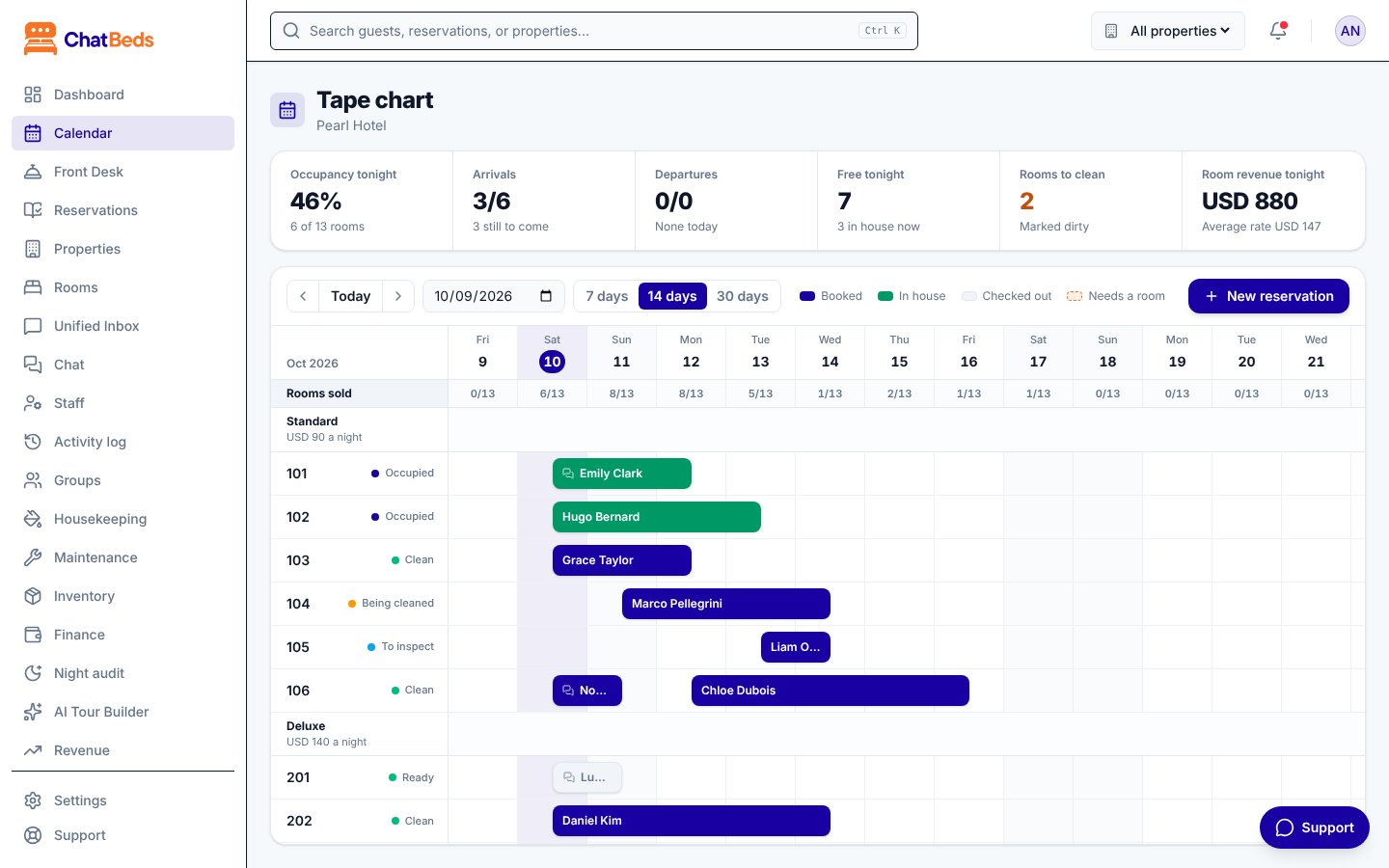
Reading the chart
| Bar colour | Meaning |
|---|---|
| Booked | A confirmed booking that has not arrived yet |
| In house | The guest is checked in |
| Checked out | The stay is over |
| Needs a room (dashed) | A booking for a room type, with no room assigned yet |
Hover over a bar to see the guest, the dates, the number of nights and anything still to pay. A small chat icon on a bar means the booking was made or changed from WhatsApp.
Bookings waiting for a room
A booking can be made for a room type, with the room chosen later. It sits in a To assign lane under its room type. It still holds one room of that type on each of its nights, so the type can never be oversold.
Guests who have not left
If a guest is still checked in after their departure date, their bar runs up to today with a red ring and "(overdue)". The room is held for them. Nobody else can be booked into it tonight until they are checked out, or you extend their stay.
Rooms out of order
A room blocked by maintenance shows as out of order on the nights it is blocked. Rooms taken out of service show "Out of service". A room type that is off sale shows "(off sale)" next to its name.
Moving around
- Today jumps back to today.
- The arrows move a week earlier or later.
- The date box jumps to any date.
- Choose 7 days, 14 days or 30 days to change how much you see.
The top row, Rooms sold, shows how many rooms are sold each night. Hover over a day to see "sold of sellable" and how many are free.
Several hotels
If you have more than one property and choose "All properties" in the top bar, the chart shows every property, one under the other. See Multiple properties.
Booking from the chart
Click an empty night
Click an empty night on a room's row. The New reservation form opens with that room and that date filled in.
Or use the button
Click New reservation at the top of the chart to start from a blank form.
Open a booking
Click any bar to open the booking panel. There you can change dates, move rooms, check in, take payment and more.
You can't drag a bar across the chart. Rooms and dates are changed from the booking panel. See Bookings.
Changing a room's status
Each room has a coloured dot with its status next to its name. Click it to set a new status: Clean, Dirty, Being cleaned, To inspect, Ready, Maintenance or Do not disturb.
Occupied is set only by a check-in. While a guest is checked in, the room can only be occupied, do not disturb, dirty or being cleaned. To mark it clean or ready, check the guest out or move them first.
Today's numbers
When one property is chosen, a strip above the chart shows today's figures:
| Figure | What it tells you |
|---|---|
| Occupancy tonight | The share of rooms sold tonight, and "X of Y rooms" |
| Arrivals | Checked in out of expected, how many are still to come, and how many have no room yet |
| Departures | Checked out out of expected, and how many "should have left already" |
| Free tonight | Rooms still free tonight, and how many are out of order |
| Rooms to clean | Rooms marked dirty |
| Room revenue tonight | Tonight's room revenue and the average rate |
Click Arrivals or Departures to go to the Front Desk lists.
The same answers in WhatsApp
Open Calendar for the chart, or Front Desk for today's lists.
Still need help?