
Bookings
Make, change, move, extend and cancel bookings, and mark no-shows, without double-booking a room.
Every booking in ChatBeds gets a six-character reference, such as 8A3B2C. You can search for it on the dashboard and use it in WhatsApp (checkin #8A3B2C).
Making a booking
Open the form
Click New reservation on the Calendar, Front Desk or Reservations page. You can also click an empty night on the tape chart.
Choose the stay and the room
Fill in Arrives, Leaves, Room type, Adults and Children. Pick a Room, or leave it on Assign later. A booking without a room holds one room of its type until you assign it.
Add the guest
Choose New and type the guest's name, phone and email. For someone who has stayed before, choose Returning and search by name, phone or email. See Guests.
Rate and extras
Pick a Rate plan (or keep Standard rate) and tick any extras, such as breakfast.
Booking details
Set Booked through, and if the guest paid now, fill in Paid now and Paid by. Add a Note for the team if useful.
Check the price and book
The Price box shows each night, the extras, the cleaning fee, tax and the total. If you agreed a different price with the guest, type it in Agreed room price. Then click Book.
How the price works
- Each night is priced by your rates. See Rates and RevBot.
- Tax and the cleaning fee are added on top.
- An agreed price replaces the quote for the room and is spread evenly over the nights. Tax and the cleaning fee still go on top.
- A closed night, or a stay shorter or longer than allowed, is refused with the reason.
- Nothing is recorded as paid unless you say so. A WhatsApp booking without
cashorcardis left with a balance.
Clash protection
ChatBeds will not let two bookings take the same room on the same night. A booking or change is refused when:
- the room is already booked for those nights;
- the room is out of order or out of service on those nights;
- a guest who was due to leave is still checked in to that room;
- every free room of that type is already held by bookings waiting for a room (assign those first);
- the room type has no room left for those dates.
The message tells you why, so you can pick another room or other dates.
Booking sources
Each booking records where it came from, shown as Booked through:
| Source | Where it came from |
|---|---|
| Front desk | Made on the dashboard |
| Walk-in | A guest who walked in. See Walk-ins |
| Website | Your own booking page. See Your booking page |
| OTA | An online travel agency, entered by hand |
| Staff chat | Booked from WhatsApp |
| Airbnb (calendar), Booking.com (calendar) and others | Came in from a linked channel calendar. See Channels |
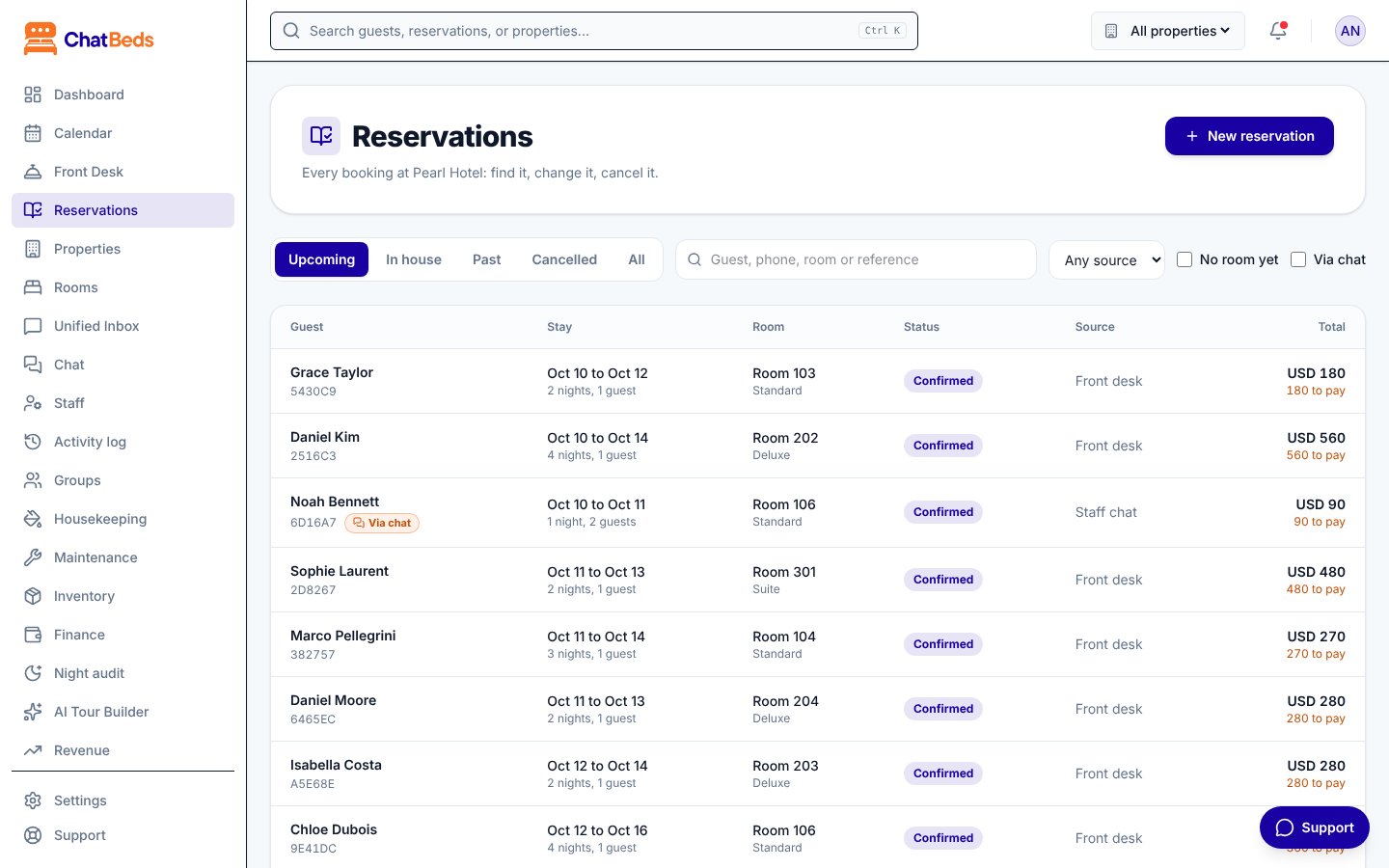
On Reservations, filter by source, and tick No room yet or Via chat to narrow the list.
Changing a booking
Open the booking and use the panel.
Assign or move a room
In the Stay section, click Assign, Change room or Move room. Pick one of the free rooms and click Assign or Move.
- Before arrival, you can move to any free room of any type.
- For a guest in house, the new room must be free for the nights still to come. The old room is marked dirty and housekeeping is told.
- Moving to another room type does not change the price.
Change dates or extend a stay
Click Change dates in the Stay section, set Arrives and Leaves, then click Save dates.
- Nights that stay keep the price they were booked at. Added nights are priced at today's rate. Dropped nights come off the bill.
- A guest who has arrived can't change their arrival date.
- A stay on a rate plan can't be shortened below the plan's minimum nights, unless its price was agreed by hand.
Edit details
Click Edit in the Guest section to change the guest's name and contact details, the number of guests, Booked through, the room price or the note. A finished or cancelled booking can only have its guest details and note changed.
Cancelling and no-shows
Open the booking
Click Cancel booking, or Mark as no-show for a guest who never arrived.
Check the fee
ChatBeds proposes the fee from the booking's cancellation policy (the rate plan's, or your default). Change it if you want; 0 charges nothing. With no policy set, nothing is charged unless you type a fee.
Confirm
The panel tells you what will be owed or refunded. Click Cancel booking or Mark as no-show.
- The stay's charges come off the bill and the fee goes on. Payments already taken stay, so the bill shows what is owed or what to refund.
- ChatBeds does not send money back by itself. You make the refund. See Folios and payments.
- A no-show can be marked from the arrival date, not before. Before then, cancel instead.
- A checked-in guest can't be cancelled. Check them out instead.
History
Every change adds a line to the booking's History: what changed, who did it, when, and whether it was done in chat. See also Activity log.
Still need help?